
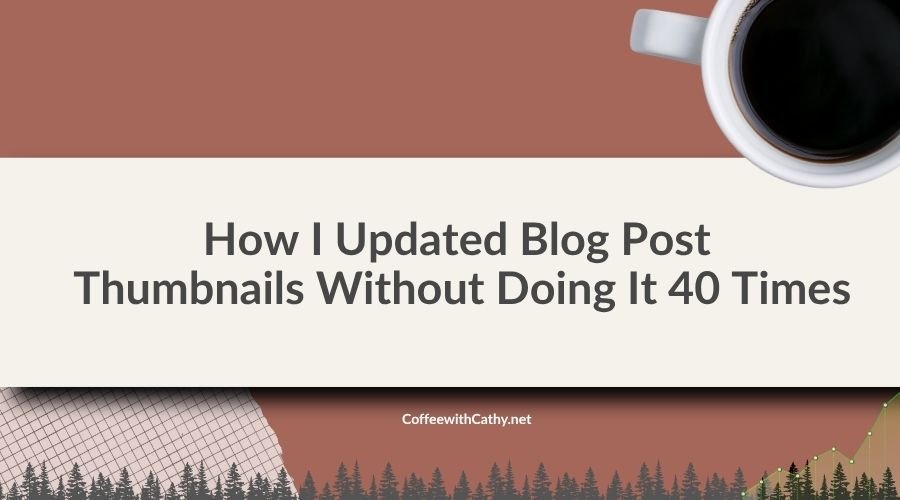
The Problem: 40 Thumbnails That Didn’t Match Anymore
My posts had outgrown their original featured image design, style, and layout. THe overall vibe wasn’t the same anymore. The posts were fine, just not featured image.
There were 40 of them across marketing, eCommerce, SEO, and business. Doing that by hand means 40 designs, 40 exports, 40 file names, and 40 trips into the WordPress editor to swap the image.
So this time I worked smarter: one template, four steps, and a couple of small scripts doing the boring part. The whole thing saved me roughly 4+ hours.
Start With The Template, Not The Tool
Automation only pays off if the design is locked first. I went through more versions in Canva than I want to admit before landing on one I’d be happy to see 40 times.
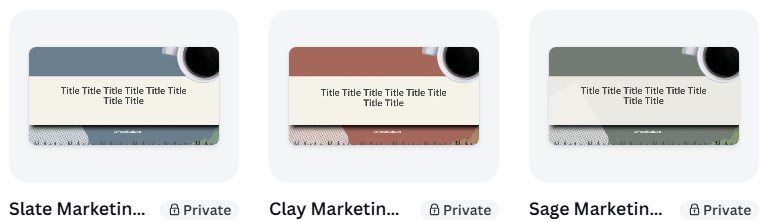
This is the final version
The final template keeps it simple:
- A soft background with a faint topographic texture
- A Warm Linen band for the title, with dark text so it reads at thumbnail size
- A coffee cup, a tree line, a small growth chart, and a bit of grid paper: business on top, outdoors underneath
Then one small decision made a big difference. I picked three background colors: sage, slate, and caramel. On a category page, posts sit side by side. If every thumbnail is the same color, the page turns into one flat block. Rotating three colors keeps neighboring posts from matching, so the page has some rhythm without looking random.
That meant three separate batches, one per color. The titles weren’t shuffled at random: each one got its color based on where the post sits on the blog feed and category pages, so neighbors don’t match.
The Four Steps
Here’s the short version. The full walkthrough, with both scripts, is in the step-by-step guide.
- Design: Canva Bulk Create. I pulled every business post title straight from WordPress using the REST API: one link in the browser, no plugin. I pasted the titles into Canva’s Bulk Create, and it filled the template once per title. Three runs, one per background color, downloaded as JPGs to keep pages fast.
- Rename: PowerShell. Canva exports files as numbers, not names. A short PowerShell script read a list of titles and renamed every file to match its post, with my name on the end. It also stops if the number of images and titles don’t line up.
- Upload: WordPress media library. I uploaded all 40 to the media library. A few didn’t make it the first time: more on that below.
- Match: WPCode. A one-time PHP snippet matched each image to its post by title and set it as the featured image. It has a preview mode, so I could see every match before anything changed. Then one more link to apply it.
What Didn’t Go Perfectly
It wasn’t flawless, and that’s fine.
- Apostrophes broke uploads. Titles like “What’s the best…” turned into file names WordPress didn’t like. I compared what uploaded against my lists, then re-uploaded the missing ones and removed the apostrophes where needed. One image also went up twice, so that check caught a duplicate too.
- My site blocked the automated pull. Good for security, slightly annoying here. Opening the REST API link in my own browser and copying the results took a minute.
- Long titles need a check. One post title runs well past the others. Bulk Create will drop it in either way, so look at the longest ones before you download.
Is This Process Worth It For You?
If you’re updating five images, just do them by hand. The setup takes longer than the work.
Once you’re past 15 or 20, or you know you’ll do it again, it pays for itself. The snippet is saved in WPCode, turned off, ready for the next batch.
Working smarter isn’t about avoiding work. It’s about spending your time on the part that needs you: the design, the brand, the decisions. Let the scripts handle the rest.
Want to try it on your own site? Here’s the full how-to with both scripts.